To import recurring pumping schedules into new software, export them to a CSV or Excel file, map each column (including the frequency) to the new system's import template, test a small batch, then confirm future stops generate from each trap's last service date. The same order works for customer lists and service history. A short parallel run lets you switch without missing a pump-out. This guide is written for grease trap pumping companies, and vendor details were checked on November 10, 2026.
Disclosure: DynoRoute makes route and dispatch software for grease haulers, and it appears in this guide.
Key Takeaways
- Six steps cover most migrations: export and clean, map the fields, set the recurrence, load customers and traps before history, test 5 to 10 records, then bulk import and verify.
- Every trap needs a frequency (a number plus a unit, such as 8 weeks) and a last service date. Without the last service date, the software can't calculate the next one.
- Keep the old records. Butler County, Ohio makes restaurants keep grease pump-out records for at least 3 years, so a 300-trap route pumped every 90 days carries about 3,600 pump-out records into the new system.
- A cadence lost in the switch has a real cost: Kennedale, Texas can fine up to $2,000 per violation per day when a trap isn't cleaned and maintained.
- Load truck tank sizes, typical gallons per trap and receiving sites too. Without them, the new system plans routes the truck can't finish.
Before You Start: What Are You Moving, and Where?
A grease trap software data migration goes faster when you answer four questions before you touch a file:
- Moving from: a spreadsheet, QuickBooks, older dispatch software or paper logs. Each one exports differently.
- Moving to: download the new system's import template before you build anything.
- Size: count the accounts, traps and trucks. This tells you how big your test batch should be.
- Owner: pick one person to own the file from export to sign-off.
What gets migrated
- Customer and site: business name, service address, contact name and phone, and a unique customer ID.
- Trap or interceptor: trap ID, size in gallons, location on site and access notes. See grease trap sizes and capacities if your records only list the model.
- Recurring schedule: frequency, last service date and next due date.
- History and manifests: past pump-out dates, volumes and manifest IDs.
- Financial (optional): pricing and billing contact. Leave open balances in your accounting system.
How to Import Recurring Pumping Schedules in 6 Steps
Step 1: Export and clean your grease trap records
Export everything to CSV or Excel, then clean it before it goes anywhere near the new dispatch software. Bad rows imported become bad stops on the board.
- Layout: put headers in row 1. Remove blank rows, formulas and
#REF!errors. - Drop: balance, total and summary columns.
- Dedupe: merge duplicate accounts and decide which address is the real service site.
- Plan for what won't map: free-text notes, scanned manifests and photos rarely import as fields. Decide which ones you need on the new record and attach them as files.
Where to find the export in your current system
- Spreadsheet: save the customer tab as CSV.
- QuickBooks Desktop: open the Customer Center, choose Excel, then Export Customer List, and save it as a CSV or Excel file. QuickBooks holds customers and invoices, not pump intervals, so you'll add the frequency columns yourself.
- Service Fusion: customer data goes through My Office > Data Import (an add-on module), where you choose the field that identifies each existing record. Equipment, service agreements and job history go to its data import team on templates.
- Housecall Pro: Customers > Actions > Import, using an Excel or CSV file. On the MAX plan, its data import team can bring in customers, job history and equipment for you.
- ServiceTitan: your Implementation Manager provides Customers, Equipment, Jobs and Estimates templates, which you fill in and send back as XLSX files.
- Paper logs: type them into the field template from Step 2 before anything else.
Step 2: Map each column to the new system's import template
Match every column in your file to a field in the new system's template, and create any custom fields first. If a field doesn't exist in the destination, the import can't fill it.
| Field | Why it matters | Example | Required? |
|---|---|---|---|
| Customer ID | Links traps and history to the right account, and stops duplicates | C-0217 | Required |
| Business name | Shows on the stop and the invoice | Riverside Commissary | Required |
| Service address | Places the stop on the map | 88 Mill St, Dayton, OH | Required |
| Contact name and phone | Used for call-ahead and access | J. Ortiz, (937) 555-0142 | Required |
| Trap ID | History attaches to this trap | C-0217-T2 | Required for multi-trap sites |
| Trap size (gallons) | Sets the expected pump-out volume | 1,000 | Required |
| Frequency number | The interval amount | 8 | Required |
| Frequency unit | The interval unit | Weeks | Required |
| Last service date | Starting point for the next due date | 2026-09-03 | Required |
| Next due date | Cross-check against the calculated date | 2026-10-29 | Optional |
| Access notes and service window | Gate codes and allowed hours | Rear lot, before 10 a.m. | Optional |
| Receiving site | Where this stop's load is unloaded | County receiving station | Optional |
Example values are illustrative, not customer data.
Step 3: Set the recurrence on each grease trap
Frequency is mandatory. Split it into a number plus a unit, and use one date format across the whole file. A free-text cell like "every 2 months-ish" won't import.
- Number plus unit: write a frequency of 8 and a unit of Weeks, not "8wk."
- Dates: use YYYY-MM-DD everywhere. US files often mix MM/DD and DD/MM, and a flip turns March 4 into April 3.
- Codes: shorthand like "2W" or "6M" only works on platforms that define it.
- Rule syntax: some tools accept a calendar rule such as
FREQ=WEEKLY;INTERVAL=2. Check the template. - No frequency column? Work it out from the gap between each trap's last few pump-out dates, then check it against the permit before you import it.
- Interval source: set each trap's interval from its permit or local rule, not from habit. Our guide to grease trap cleaning frequency covers the common rules.
Which way should you load recurring stops?
There are three ways to handle recurrence:
- One rule per trap: one row with the frequency fields. The new system generates future stops. This is the cleanest option.
- History first, then rules: import past services, then recreate the recurring rule in the new system.
- Expanded instances: list each future stop as its own row, 6 to 12 months ahead. Use this only for tools with no rule field, because you have to redo it when the horizon runs out.
Step 4: Import customers and traps first, then migrate service history
Load accounts and trap assets before any history, so each past pump-out can attach to the individual trap and not just the customer. On a site with three interceptors, account-level history tells you nothing about which trap is due. See servicing multi-trap locations for how to set up those sites.
- Order: customers, then sites, then traps, then history rows keyed by trap ID.
- Manifests: keep manifest IDs on each history row, and archive the originals.
- Mark history as history: past pump-outs should show on the trap and feed the next due date, but they must not create new invoices or sync to QuickBooks a second time. Test this on the batch in Step 5.
- Multi-location accounts: one billing parent, separate service sites.
- Retention: keep the legacy records until you've confirmed your local rule. The Butler County, Ohio FOG control rule requires food service establishments to pump grease interceptors at least every 90 days and keep the manifests, receipts and invoices for at least 3 years. At that rule, 300 traps pumped 4 times a year for 3 years is 300 × 4 × 3 = 3,600 history rows to move. Our guide to grease trap manifest requirements covers what each record should hold.
Step 5: Test a small batch in the new dispatch software
Import 5 to 10 records first, or 10 to 20 from a large file, and check each one by hand before the bulk upload. Pick test rows that cover the hard cases.
- Mix: include a multi-trap site, an account with unusual access notes, and the shortest and longest frequency.
- Check: confirm fields landed in the right place, dates read correctly and history sits on the right trap.
- Duplicates: decide whether repeats are skipped, overwritten or updated.
Step 6: Bulk upload, verify and rebuild recurring intervals
Import the full file, read the error report, and confirm future stops generate with next-due dates calculated from the last pump-out. A clean import message doesn't mean the schedule is right.
- Error report: fix failed rows at the source and re-import only those rows.
- Spot-check: compare 10 accounts against the old system, field by field.
- Recurring rules: some tools import history but not recurring rules. If yours dropped them, recreate the rule on each trap.
- Reconcile: compare record counts out and in, and the stops due next month in both systems.
Why a Missed Cadence During the Switch Costs So Much
A migration is the riskiest month for recurring work, because a trap whose rule didn't import simply never shows up on the board. The EPA's food service pretreatment fact sheet cites its Report to Congress finding that grease from restaurants, homes and industry is the most common cause (47%) of reported sewer blockages, which is why cities enforce intervals. Kennedale, Texas requires a full pump-out at least every 90 days and can fine up to $2,000 per violation per day for a trap that isn't cleaned and maintained. That fine lands on your customer, and the lost account lands on you. Reconciling "stops due next month" in both systems (Step 6) is the check that catches it. For how to keep overdue traps visible after go-live, see tracking overdue grease trap customers.
What to Migrate So Routes Respect Truck Capacity
Most migration guides stop at customers and schedules. A pumping route is limited by what the truck holds, not by miles. If the new system doesn't know tank size, typical volumes and where to unload, it will plan a route the truck can't finish. That puts the dispatcher back to doing capacity math in their head, the same as before the switch.
| Field | Why it matters for routing | Example |
|---|---|---|
| Truck tank capacity | The hard limit on each route | 3,000 gallons |
| Your unload rule | When the truck heads to the receiving site | Set by you |
| Typical volume per trap | Taken from history, more accurate than trap size alone | 640 gallons average |
| Receiving site and hours | Where the unload goes, which may be far from the yard | Receiving station address, gate hours |
| Truck-to-site rules | Which trucks a receiving site accepts | Vacuum trucks only |
Trap size alone is a poor guide to volume. The same EPA fact sheet puts the grease a single restaurant produces, trap waste plus grease that reaches the sewer, at anywhere from 800 to 17,000 pounds a year. Two traps of the same size can fill at very different rates, so carry each trap's typical gallons over from its history. For gate times and cutoffs, see scheduling grease routes around disposal sites.
The capacity and disposal parity test
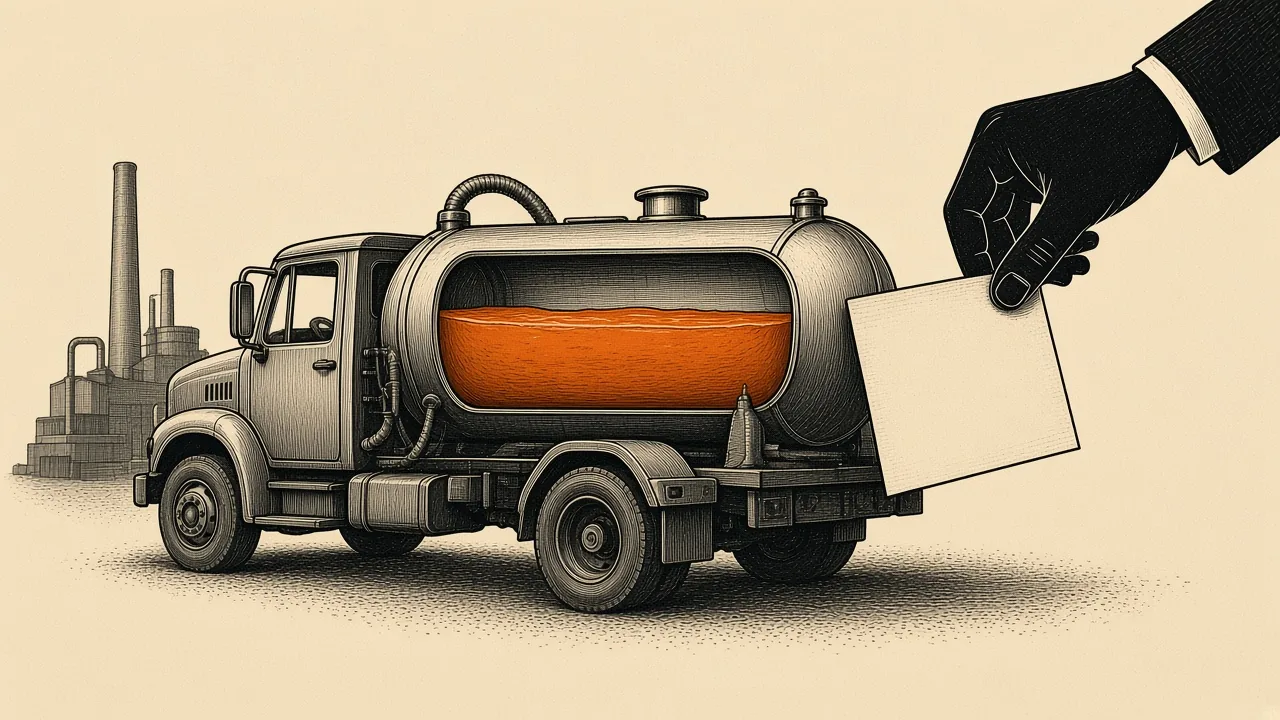
Before cutover, run one real week through the new system and compare it with what your trucks actually did:
- Load: add that week's stops, trucks and receiving sites.
- Compare gallons: check planned gallons per truck load against tank capacity.
- Compare dump runs: count the disposal trips the plan includes against the trips drivers actually ran.
- Flag: list any route the old board sent out with more gallons than the tank holds.
Illustrative example (not customer data): one truck with a 3,000-gallon tank has five Tuesday stops, with typical volumes from history of 700, 500, 900, 600 and 800 gallons, or 3,500 gallons in total. The old board sent all five as one load, so the driver had to unload after stop four (700 + 500 + 900 + 600 = 2,700 gallons) before taking the last 800. If the new plan puts that unload between stops four and five on its own, the capacity data migrated correctly. If it plans all five on one load, the tank size or the typical volumes didn't come across. The extra disposal trip also has to fit the receiving site's gate hours and the driver's shift.
How Vendors Handle the Import
| Vendor | What it says about getting your data in (checked November 10, 2026) |
|---|---|
| DynoRoute | CSV and Excel customer imports; routes, imports and setup are discussed on the intro call; "Live in days"; no setup fee |
| Tank Track | "We import and clean your data, set you up for free, and there's no contract," followed by 1 to 4 live training sessions |
| RouteHouse | Its team migrates customers, properties, past jobs, upcoming schedule and price list, works out service-due dates, and says it's usually done the same day it gets usable exports |
| PumpDocket | Says you can go live in one day: import customers, run one route, hand off to your bookkeeper |
| Essential | Free data migration from software, spreadsheets or paper manifests; bulk import of prior service records, including a PDF or a photo of a handwritten manifest, read by an AI agent |
| ServiceCore | An implementation specialist moves your data; onboarding "typically takes 6-12 weeks," depending on business size |
What to ask before you switch
- Will it import recurring rules, or only past history?
- Who does the import, and is it included in the price?
- Is imported history kept out of invoicing and accounting sync?
- Does it plan routes within each truck's tank capacity, with disposal trips on the route?
- What is the contract length, and can you export your data if you leave?
If your schedule lives in a spreadsheet today, our guide to moving from spreadsheets to dispatch software covers the change for the office. To compare tools side by side, see the best scheduling software for recurring grease trap service.
Where DynoRoute Fits
DynoRoute plans recurring pumping routes around what each truck holds, with the dispatcher in charge.
- Import: CSV and Excel customer imports, with custom trap fields for the data your old system kept.
- Recurrence: weekly, biweekly, monthly, quarterly or custom. Due, unscheduled and overdue work stays visible to dispatch, which is what you check in Step 6. More in our recurring route scheduling guide.
- Capacity: capacity limits by truck and expected gallons by stop, with multiple trips and receiving-site returns planned into the route.
- Assignment: AI suggestions matched by capacity, location, availability, workload and skills, each with a confidence score. The dispatcher keeps final control.
- Records: drivers record gallons, photos, signatures and notes in the iOS or Android app, even offline. Manifest rules vary by jurisdiction, so you set the fields and reports to match each authority you serve. QuickBooks invoice and payment sync carries completed work to billing.
- Terms: flat monthly plans with usage credits, month-to-month, no setup fee and no per-seat fees.
Not sure your export will fit? Book a 30-minute intro call and bring a sample of your file. See DynoRoute's grease trap software for the full feature list.
How to Switch Grease Trap Pumping Software Without Missing a Pump-Out
Run both systems side by side, move trucks over in stages, and have drivers test the app before go-live. Route disruption happens in the field, not in the import file.
How long should you run both systems?
Two to four weeks is a common window in switching guides. The better test is the data, not the days: don't cut over until every trap due in the next 90 days shows the same next-due date in both systems, and each day's stops match.
Should you move every truck at once?
No. Avoid the "big bang" Monday switch and stage the rollout by truck, route or zone instead:
- Start with one truck in a low-volume window.
- Hold back a buffer for emergency stops.
- Decide which system owns jobs already booked for the cutover week, so none is run twice or dropped.
- Freeze edits in the legacy system at go-live, so the two schedules don't drift apart.
What do drivers need to test?
Have your most experienced drivers run real stops on the mobile app first:
- Test the app offline, in a dead zone.
- Carry paper backup manifests for the first days.
- If you bill through QuickBooks, test the sync before the first invoice run.
What happens to the old system after go-live?
Keep it read-only for 30 to 90 days, and keep its exported records for as long as your local retention rule requires. That way, any dispute or missing record can be checked without anyone re-keying into it.
Pre-Cutover Checklist
- Record counts match between the old and new systems.
- The 10-account spot-check passed.
- Every trap has a frequency, a last service date and a generated next stop.
- History sits on the trap, with manifest IDs kept, and it didn't create invoices.
- Truck capacities, typical volumes, unload rules and receiving sites are loaded.
- The parity test matched the unloads your drivers actually ran.
- Jobs booked for the cutover week belong to one system.
- Drivers have tested the app, including offline.
- The legacy system is set to read-only.
Plan Your Switch With DynoRoute
Tell us which system you're moving from, how many trucks and traps you run, and where you unload. On a 30-minute intro call we'll talk through your import, your setup and what your plan would cost. The first call is a conversation about fit and pricing, not a software demo. Book a 30-minute intro call.
Frequently Asked Questions
How do I import recurring pumping schedules into new software?
Export your schedules to CSV or Excel, map each column (including frequency number and unit) to the new system's template, and test 5 to 10 records. Then bulk import and confirm future stops generate from each trap's last service date.
Why does each recurring trap need a last service date?
The last service date is the starting point the software uses to calculate the next due date. Without it, future stops can't be generated correctly, and a next due date column only works as a cross-check.
Can I import grease trap schedules from paper logs?
Yes, but type the logs into the new system's field template first. Each trap needs a customer ID, service address, trap size in gallons, a frequency number and unit, and a last service date in YYYY-MM-DD format. Some vendors will also read scanned manifests for you.
How long does it take to switch grease trap pumping software?
It ranges from a day to a few months. PumpDocket says you can go live in one day, DynoRoute says live in days, and ServiceCore says onboarding typically takes 6 to 12 weeks. Add your own parallel run of two to four weeks.
Should I run the old and new systems at the same time?
Yes, for a short window. Keep the old system as the reference, move trucks over in stages, and cut over only when every trap due in the next 90 days shows the same next-due date in both systems.
How long should I keep records from the old system?
Keep them for as long as your sewer authority requires. Butler County, Ohio makes food service establishments keep grease pump-out manifests, receipts and invoices for at least 3 years, so export the full history before you close the old account.
What if the new software doesn't import recurring rules?
Import the past services, recreate the rule on each trap, then check the generated next stops against the old system. If the tool has no rule field at all, list each future stop as its own row 6 to 12 months ahead, and repeat the import when that horizon runs out.